Design–print pipeline
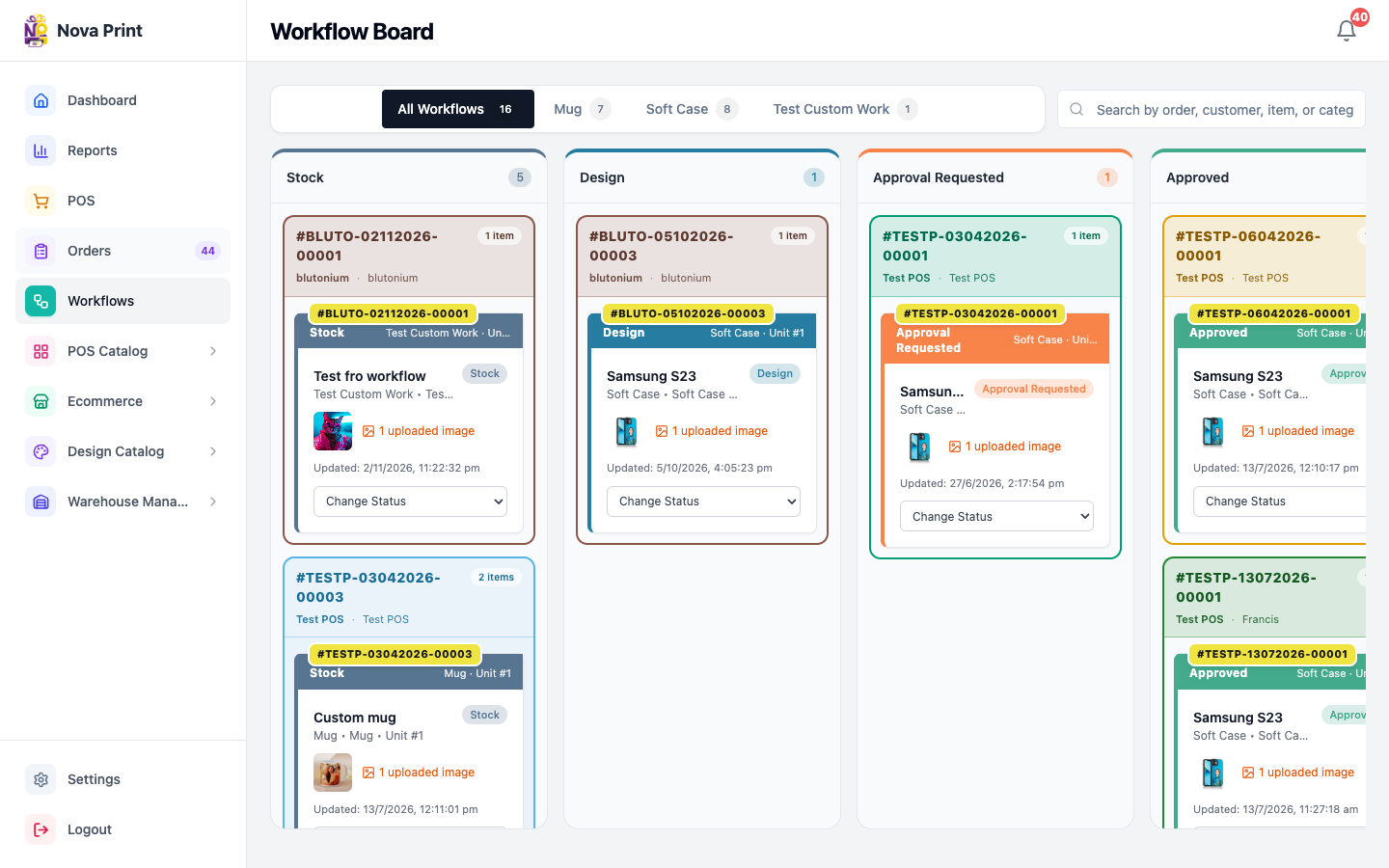
Workflows is the manufacturing board for custom order units. Typical happy path: Stock → Design → Approval Requested → Approved → Printing → Ready → Completed. Exception stages include Failed, Cancelled, and (mugs) Broken.
Who and where
- Roles: Admin (full board); Design (focus Design — draggable only in Design); Print (focus Printing — draggable only in Printing)
- Routes:
/workflows,/workflows/{category-slug} - Nav: Sidebar → Workflows (header Workflow Board)
Related: Admin Orders board (order must reach Processing before units appear).
Stages (exact labels)
| Status | Role of stage |
|---|---|
| Stock | Unit created; waiting to enter design |
| Design | Artwork preparation; upload design files here |
| Approval Requested | Waiting for approval |
| Approved | Cleared for print |
| Printing | In print production |
| Broken | Mug path only — reprint / restart path |
| Ready | Finished production, awaiting complete |
| Completed | Done |
| Failed / Cancelled | Exception exits (may restart from Failed) |
Workflow type labels on cards include Back Case, Soft Case, Mug, Custom Manufacturing (and title-cased category-derived types).
Allowed moves (summary)
Default (non-mug) transitions the board offers are driven by the API (allowedNextStatuses). Common path:
- Stock → Design (also Cancelled / Failed)
- Design → Approval Requested, Approved, or Printing (also Failed / Cancelled) — leaving Design requires at least one design file
- Approval Requested → Approved or back to Design
- Approved → Printing
- Printing → Ready
- Ready → Completed
Mug also allows Printing / Ready ↔ Broken, and Broken → Stock or Cancelled.
Invalid drops toast Invalid transition.
1. Open the Workflow Board
- Sign in (Design / Print land on
/workflowsby default). - Open Workflows.
- Use tab All Workflows or a category tab (slug updates the URL).
- Optional search: Search by order, customer, item, or category…
- Optional chips: Order:, POS:, Customer: (clear with ×).
Role badges: Design sees Viewing: Design; Print sees Viewing: Printing.
2. Read grouped cards
- Units are grouped by order (#orderId, POS, customer, item count).
- Each unit shows stage, type label, and optional Failure: / Cancelled: text when the API provides a reason.
- Footer Change Status lists allowed next statuses, or No transitions if none.
3. Design handoff (happy path)
- Find a unit in Stock (admin) or already in Design.
- Move Stock → Design (drag or Change Status) when needed.
- Click the card to open unit detail.
- Under Design Files, click Upload Design File (status Design; admin or design). Wait for Uploading… to finish.
- Move to Approval Requested (or directly Approved / Printing when allowed).
- From Approval Requested, choose Approved (admin path sets approval source Admin) or return to Design.
- Move Approved → Printing.
Without a design file, leaving Design fails with: Please upload at least one design file before moving to the next stage.
4. Print handoff
- As Print (or Admin), locate units in Printing.
- Print staff can drag only cards in Printing.
- Move Printing → Ready (Mug: use Broken when reprint is needed).
- Move Ready → Completed.
When all units on an order complete, order status can become Completed. Approval / Failed / Cancelled units can push the order to Needs Action.
5. Unit detail tools
- Open a card.
- Review Customer, Order Item, Unit #n · {type}.
- Catalog design: Download / View full size; heed No print file — preview cannot be used for print when shown.
- Customer Uploaded Images appear in Design / Approval / Approved / Printing stages.
- Shipping Details show for admin; hidden for design/print.
- Footer: Close, Activity, View Full Order Details.
Verify in UI: Design/Print opening View Full Order Details may fail if the full order API is admin/accounts-only; unit detail still shows board data.
6. Activity timeline
- Click Activity.
- Review events such as Unit Created, Status Changed, Approval Requested, Approved, Marked Broken, Marked Failed, Restarted, Cancelled.
- Add comments with Add a comment… (Enter to send; Shift+Enter for a new line).
Checklist
- Order is Processing so units exist for custom items.
- Design file uploaded before leaving Design.
- Approval path used when the shop requires customer/POS/admin sign-off.
- Print only moves Printing → Ready → Completed (plus mug Broken when needed).
- Failed/Cancelled units reviewed so the parent order leaves Needs Action.