Create a product
Add warehouse catalog products in Admin. Products are the SKUs you stock, show on POS catalog, and list on ecommerce.
Prerequisites: Categories and properties (at least category and any properties you need).
Who and where
- Roles: Stock, Admin
- Route:
/warehouse/products(create opens a dialog — no separate URL) - Nav: Warehouse Management → Products
Pipeline after create: Stock and warehouses → POS catalog visibility → Ecommerce listings.
1. Open Products
- Sign in to Admin.
- Open Warehouse Management → Products (
/warehouse/products). - Use Search products... and All Categories if you need to find an existing item first.
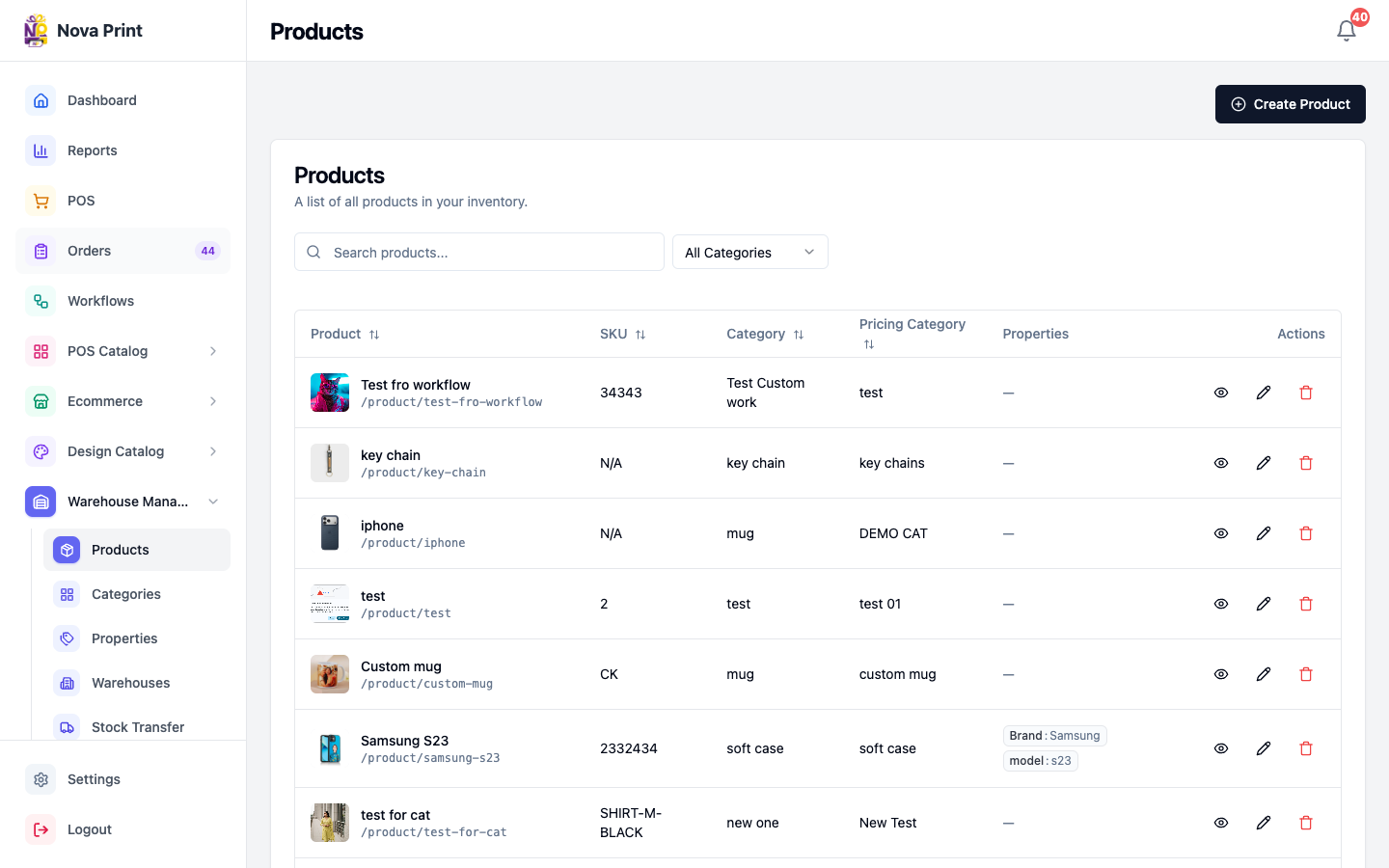
2. Start Create Product
- Click Create Product.
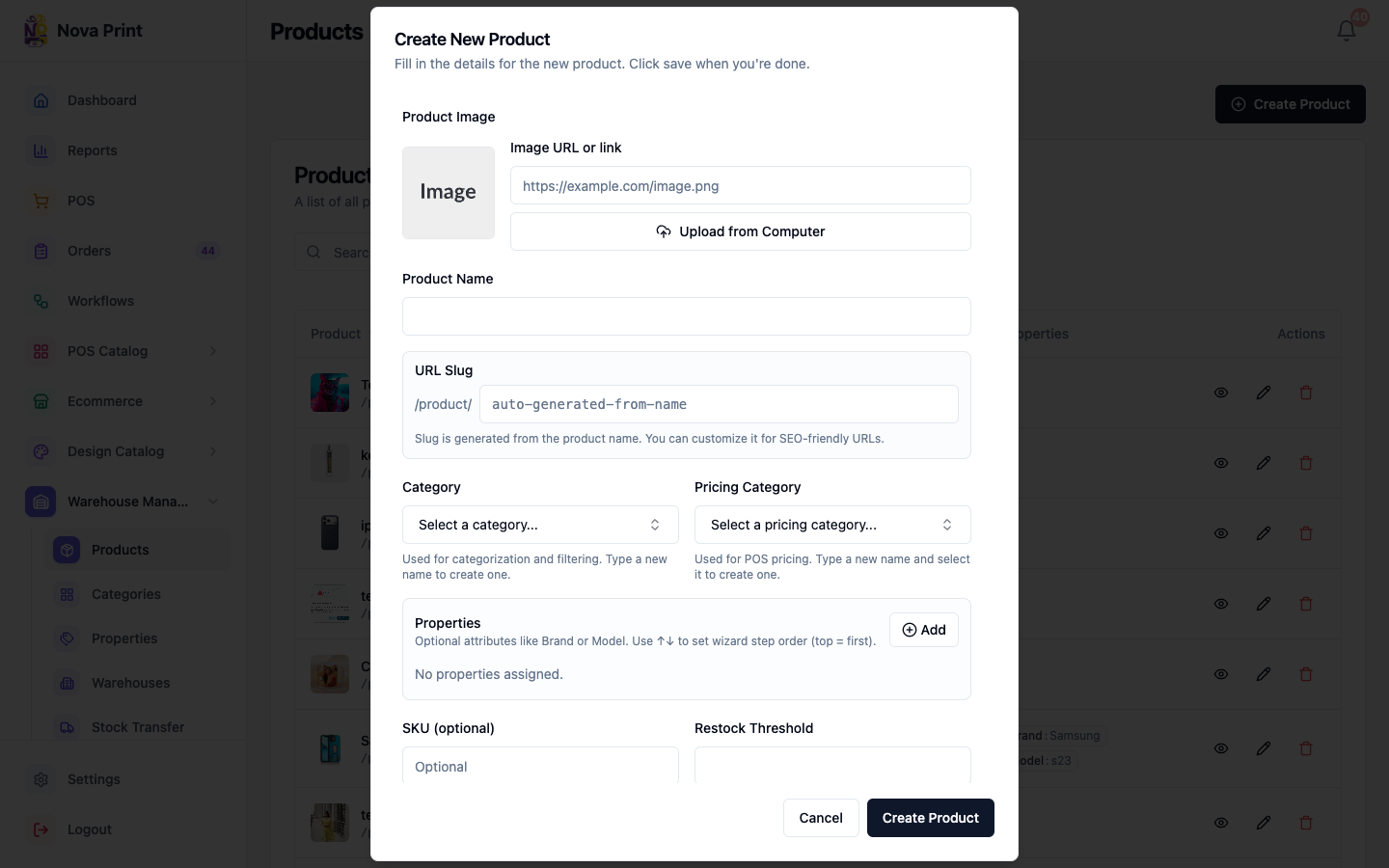
- The dialog opens (create mode). Edit mode uses the same fields with Save Changes.
3. Fill product fields
Work top to bottom:
- Product Image — paste Image URL or link, or Upload from Computer.
- Product Name — required by the API in practice; empty saves may fail. Verify in UI if the Save button stays enabled with an empty name.
- URL Slug — appears under
/product/…. Use Reset from name or let auto-suggest run; edit only if you need a fixed slug. - Category — select from the combobox (Select a category...). You can create one inline with + Add "{value}" if the category is missing (image may still be needed elsewhere — Verify in UI).
- Pricing Category — select (Select a pricing category...) when POS pricing rules apply.
- Properties — click Add; for each row pick Key and Value. Reorder with ↑↓ for wizard step order. Remove a row if unused.
- SKU (optional) — one SKU per product (no size/color variant matrix in this dialog).
- Restock Threshold — used for low-stock highlighting on warehouses.
- Default Price (optional).
- Making Time (hours) — production lead time.
- Customizable — turn on for products that accept designs / custom print flows.
- Cart addon (popup, keychain, etc.) — switch Cart addon. Help text: Addon products are hidden from the shop catalog and shown as extras when customers add items to cart.
Cart addons end-to-end
Marking Cart addon hides the SKU from normal shop browsing and surfaces it as an “extra”:
| Channel | Customer experience |
|---|---|
| Ecommerce | After adding a main item, You might also like upsell dialog; cart drawer / checkout Add extras / Add more extras |
| Catalog link (POS host) | Cart Add extras; optional You might also like sheet before shipping |
| POS counter | Add-ons category on the POS product grid (in-store sale) |
| Classic customer-link checkout | Addon picker during the Checkout wizard when configured |
Still required after create: warehouse stock, and any channel listing rules for non-addon products. Addons need stock in a warehouse the channel can sell from.
4. Save
- Click Create Product.
- Fix any validation errors shown on fields.
- Confirm the product appears in the list (name,
/product/{slug}, SKU, Category, Pricing Category, property tags).
5. After create — stock and channels
Creating a product does not put stock in a warehouse or make it visible on POS/ecommerce by itself.
- Assign the product to a warehouse and set quantity — Stock and warehouses.
- Toggle In Catalog on POS Catalog if cashiers should browse it — POS catalog visibility.
- Enable Listed per fulfillment warehouse on Ecommerce — Listings and homepage.
6. Edit, view stock, deactivate
From the products table:
- Edit (pencil) — same dialog → Save Changes.
- View Stock — Stock Details: {name} shows Warehouse, Location, Quantity.
- Delete — opens Deactivate product (soft deactivate, not hard delete). Review Dependency summary, then Deactivate.
Verify in UI: restoring a deactivated product (is_active) — warehouse Products list has no dedicated restore button in current UI; ask an admin if reactivation is needed via API/other tools.
Fields not in this dialog
These exist on the product API/model but are not edited in Create Product: description, dimensions, weight, and show_in_pos_catalog. POS visibility is managed under POS Catalog. Mark anything else as Verify in UI.
Checklist
- Category (and pricing category if needed) selected.
- Properties match design compatibility rules for customizable goods.
- Customizable flag set correctly for print/design products.
- Next step planned: warehouse stock + POS/ecommerce visibility.
Related
- Technical: Domain model — Product / WarehouseStock entities
- Technical: Stock rules — when inventory decrements by channel