Order history and edits
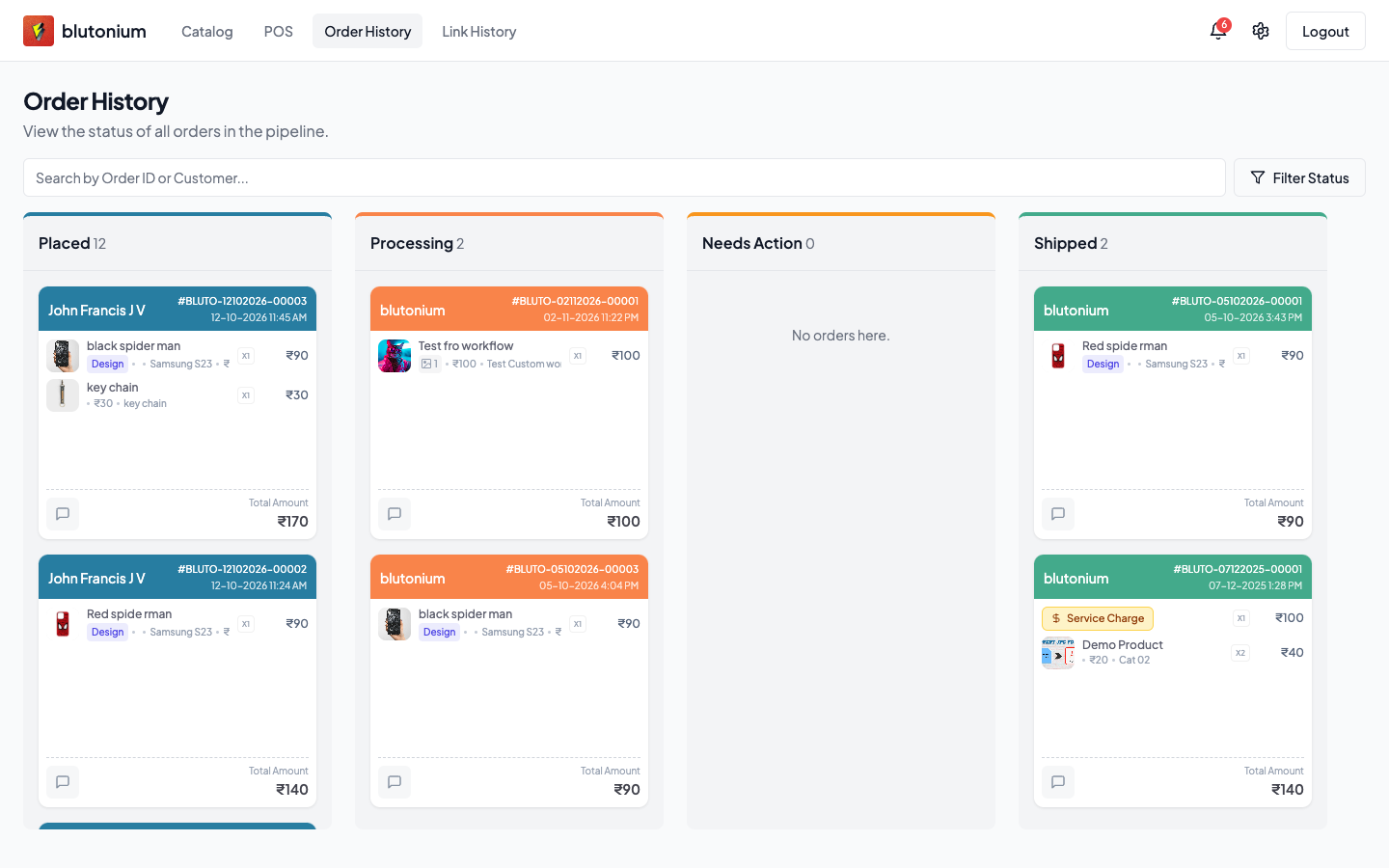
Use Order History to track this terminal’s live orders, open details, chat, link related orders, approve design mockups when asked, and request permission to edit a placed order.
Route: /{posSlug}/orders.
Board overview
- Open Order History.
- Orders appear in columns: Placed, Processing, Needs Action, Shipped (with counts).
- Search by Order ID or customer name.
- Use Filter Status to show/hide those columns.
Click a card to open the order. Footer actions on a card open Comments or linked-order views when available.
View an order
In the order modal you can typically see:
- Status badge, items (including service charge, custom uploads, catalog designs)
- Shipping type/details and payment screenshot (if uploaded)
- Linked Orders — open another linked ID, or Manage Links / Link to Another Order
- Comments — chat with Admin/system messages for this order
- Design & Approval blocks when workflow units need cashier approval
Approve or reject a design
When a unit shows Pending your approval:
- Review the design mockups.
- Click Approve Design, or Reject and optionally enter a rejection note → Confirm reject.
Link related orders
From an open order:
- If no links yet: Link to Another Order.
- If already linked: Manage Links.
- In Link Orders to {orderId}, search by Order ID or customer, check orders, then Link Selected Orders.
You can also attach related IDs before placing a new sale — see Create an in-store order.
Request an edit
POS does not freely rewrite a live order. Cashiers request permission; Admin approves or rejects in Admin Orders.
- Open the order.
- Click Request Edit.
- Enter a Reason for Edit → Submit Request.
- The button becomes Edit Pending until Admin acts.
- After Admin approves, the order footer shows an Edit Approved badge (and you may get an
edit_approvednotification). After rejection, notifications can show an edit-rejected style alert.
Admin side: open the order in Admin → Edit Request → Approve or Reject.
Applying the edit after approval (current UI)
What works today
- Notifications (bell dropdown or
/{posSlug}/notifications) for edit approval: View Order / click the notification opens Order History with that order (openOrderId) — you see the Edit Approved badge. - The POS checkout page does support full edit mode when an order is loaded as
editingOrder:- Header becomes Edit Order / Editing: {orderId}
- Primary action becomes Update Order (payment modal title Update Order)
- Cancel Edit clears edit mode and returns to Order History
- Entry plumbing listens for navigation to
/{posSlug}/poswith location state{ editOrderId: "…" }, then fetches the order into edit mode.
What is not wired in the current UI
- Order History shows only the Edit Approved badge — there is no “Start edit” / “Edit Order” button on the modal.
- Notification View Order does not navigate to POS with
editOrderId; it opens Order History detail only. - No other staff control currently sets
editOrderId.
So cashiers can request edits and see approval, but the shipped UI does not yet take them into Update Order after approval. Treat “apply the edit at the counter” as blocked until a Start Edit control (or notification deep-link) is added. Do not rely on a hidden menu path.
Related Admin vs POS actions
| Action | Where |
|---|---|
| Approve/reject edit request | Admin Orders detail |
| Advance order status / verify payment | Admin Orders (staff with access) |
| Cashier view, comments, design approve/reject, request edit | POS Order History |
| Archived boards | POS Settings → Archive (restore is Admin) |