Browse designs and collections
Collections group catalog designs. Pick a design, then choose brand/model options before adding it to the cart.
Canonical routes:
| Page | Path |
|---|---|
| Collections index | /collections |
| One collection | /collections/{collectionSlug} |
| Design detail | /collections/{collectionSlug}/{designSlug} |
Legacy /designs and /designs/... redirect to the matching /collections URLs.
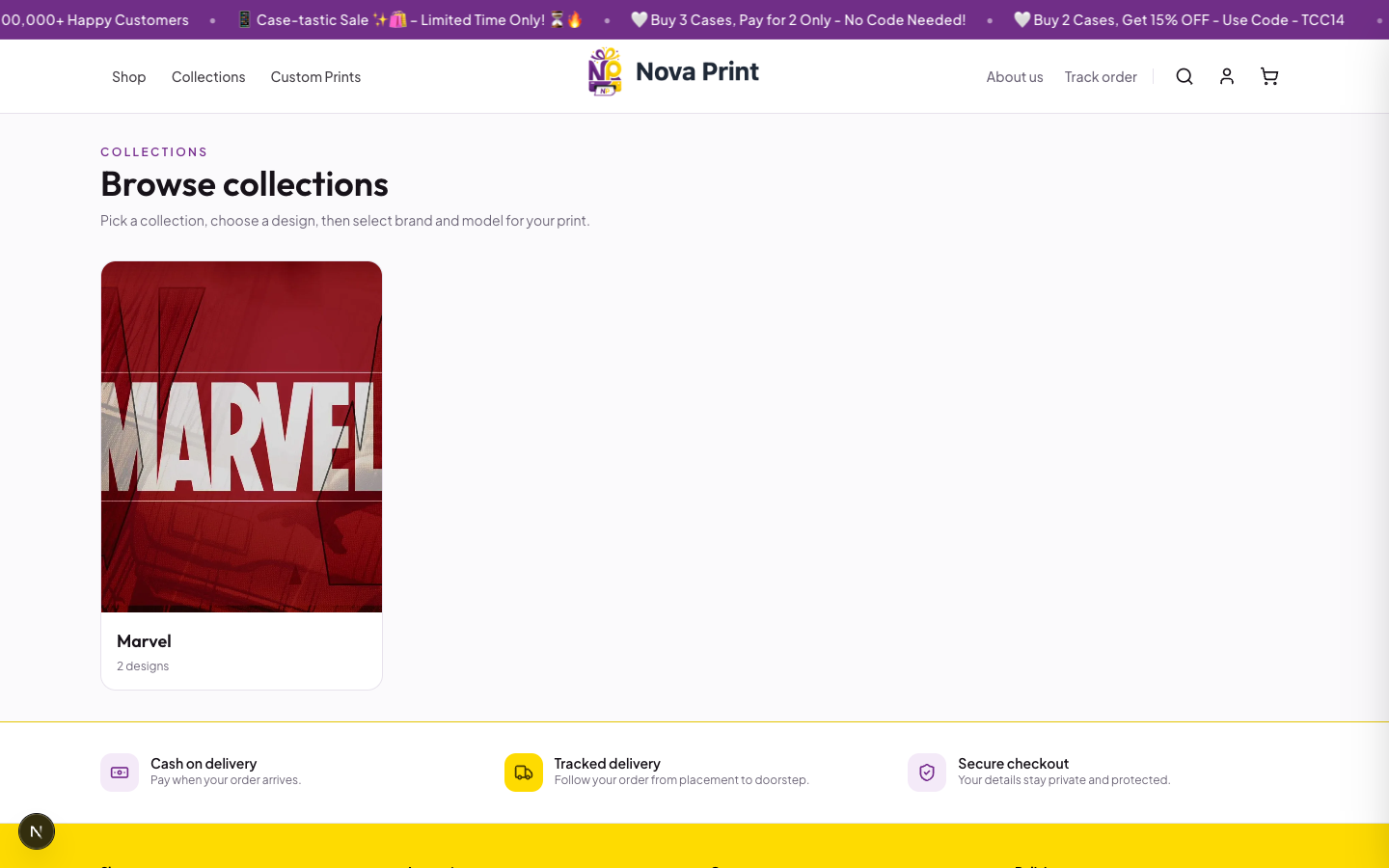
Browse collections
- Open header Collections →
/collections(Browse collections). - Intro copy: Pick a collection, choose a design, then select brand and model for your print.
- Open a collection, then open a design.
- If there are no collections: No collections yet — use upload your own design →
/custom.
On a collection page, designs are grouped; More designs may appear for additional items.
From Shop all
- Go to Shop →
/category/all. - Set Product type to Designs.
- On a design card, hover Choose model or click View design to open the design detail URL.
Design detail → cart
- Open
/collections/{collection}/{design}. - Badge: Design. Tabs: Description, Reviews ({n}).
- In Choose brand & model, follow Select options below, then add this design to your cart.
- For each property step, use the dropdown labeled with the property key name (placeholder Select {key}).
- When a compatible model resolves, review the price card and click Add to cart → Added to cart, then optional Checkout.
- If no compatible models: follow uploading your own design →
/custom.
Related sections may show You may also like and More designs from this collection.
Next steps
- Custom print flow to upload artwork instead
- Checkout (COD / Razorpay)