Compatibility rules
Compatibility rules decide which warehouse products can use a design. There is no separate Compatibility menu — rules live inside Create Design / Edit Design.
Rules use AND matching: the product must satisfy every rule. Optional category further scopes a rule. Designs with no rules match no products.
Who and where
- Roles: Stock, Admin
- Route:
/design-catalog/designs→ New Design or Edit - Depends on: Warehouse Categories and properties and products with property assignments (Create a product)
Related: Collections, groups, and designs.
What matching requires (backend)
A product is compatible when all of the following hold:
- Product is active.
- Product is Customizable.
- Product property assignments match all rules (property key + value; category if set on the rule).
Verify in UI whether channel listing / stock further hide a design on POS or the website beyond this match list.
1. Prepare properties and products
- Create property Keys and Values under
/warehouse/properties. - On each customizable product, assign the matching key/value rows under Properties.
- Optionally assign a Category used for scoping rules.
Example pattern: key Model, value iPhone 15; product for that model has the same assignment and Customizable on.
2. Open the design dialog
- Go to Design Catalog → Designs (
/design-catalog/designs). - Click New Design, or Edit on an existing design.
- Scroll to Compatibility rules.
- Read the helper: products must match all rules (AND); optional category scopes further.
3. Add rules
- Click Add rule.
- For each row:
- Category — pick a product category, or Any category (empty category).
- Property key — from warehouse keys.
- Select value / Pick key first — choose a value for that key.
- Add more rows if the design needs multiple constraints (all must match).
- Use the trash control to remove a row.
Payload shape on save: category_id (optional), property_key_id, property_value_id.
4. Save and check matches
- Click Create Design or Save Changes.
- Review the matching products preview if shown ("{n} matching product(s)").
- Some names may show (not listed) — listing is a separate ecommerce/POS concern.
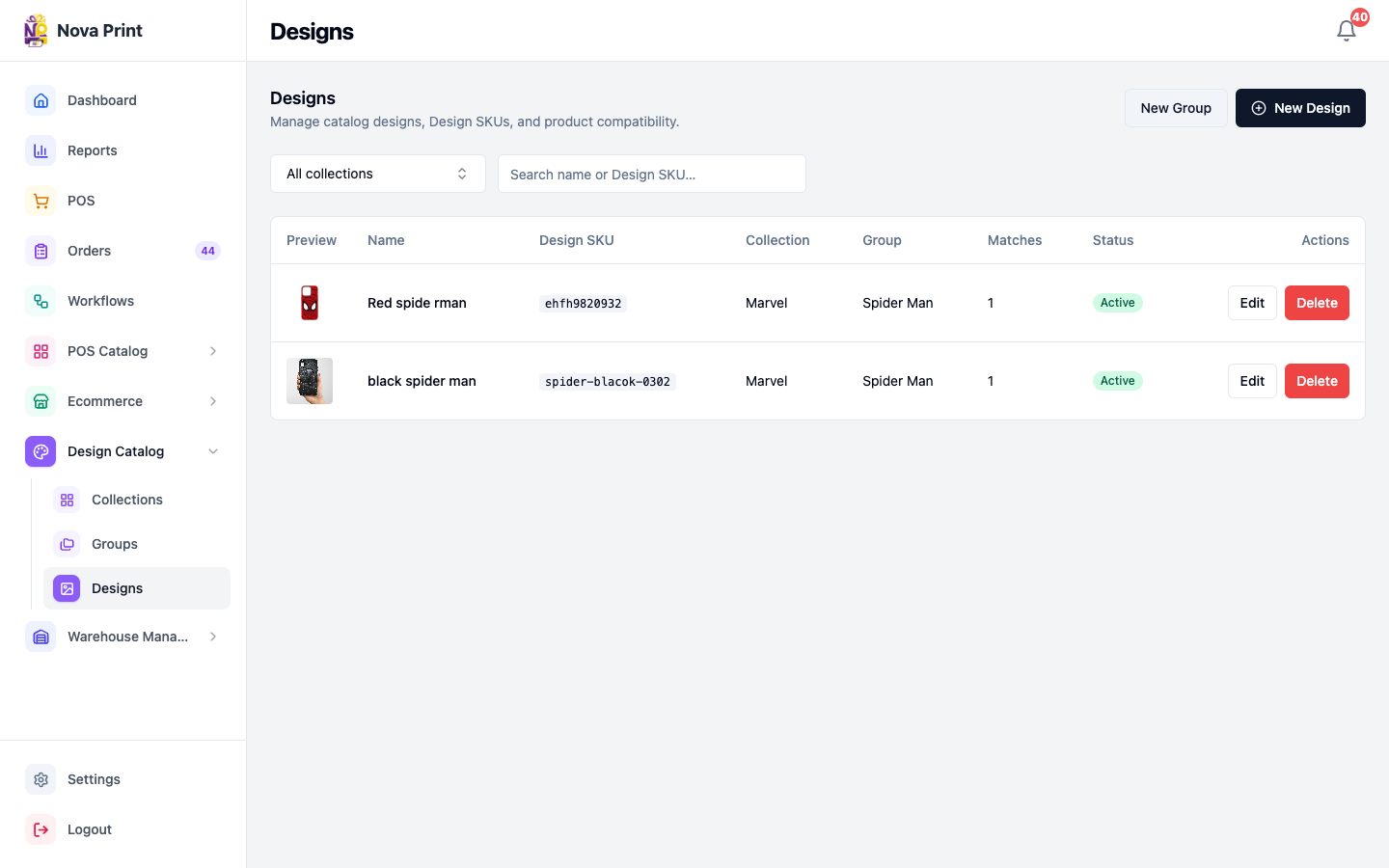
- On the designs table, check the Matches column.
If matches are zero:
- Confirm the design has at least one complete rule (key + value).
- Confirm target products are Customizable and Active.
- Confirm product property assignments use the same key/value.
- Confirm category on the rule is not too narrow.
5. Protect property deletes
Deleting a property key or value that is used in design rules is blocked. Properties page copy warns about design compatibility references. Update or remove rules on designs before deleting keys/values.
Checklist
- Customizable products have the property values you intend to match.
- Every design you sell has at least one complete rule.
- Match count looks right after save.
- POS Catalog / Ecommerce visibility set so matched products can actually sell.