Collections, groups, and designs
Build the design catalog hierarchy used by POS and ecommerce custom-print flows.
Hierarchy: Collection → Group (optional) → Design.
Designs do not link to products by SKU. Compatibility is defined with rules (see Compatibility rules).
Who and where
- Roles: Stock, Admin
- Routes:
/design-catalog→ redirects to/design-catalog/designs/design-catalog/collections/design-catalog/groups/design-catalog/designs
- Nav: Design Catalog → Collections / Groups / Designs
Recommended order
- Create Collections.
- Create Groups inside collections (optional).
- Create Designs with Design SKU, images, and compatibility rules.
- Toggle channel visibility (ecommerce home / POS catalog) as needed.
1. Create a collection
- Open Design Catalog → Collections (
/design-catalog/collections). - Click New Collection.
- In Create Collection:
- Cover Image — Image URL and/or Upload.
- **Name *** (required).
- Description (optional).
- Sort order.
- Active.
- Show on ecommerce home — only enabled when Active is on.
- Click Create.
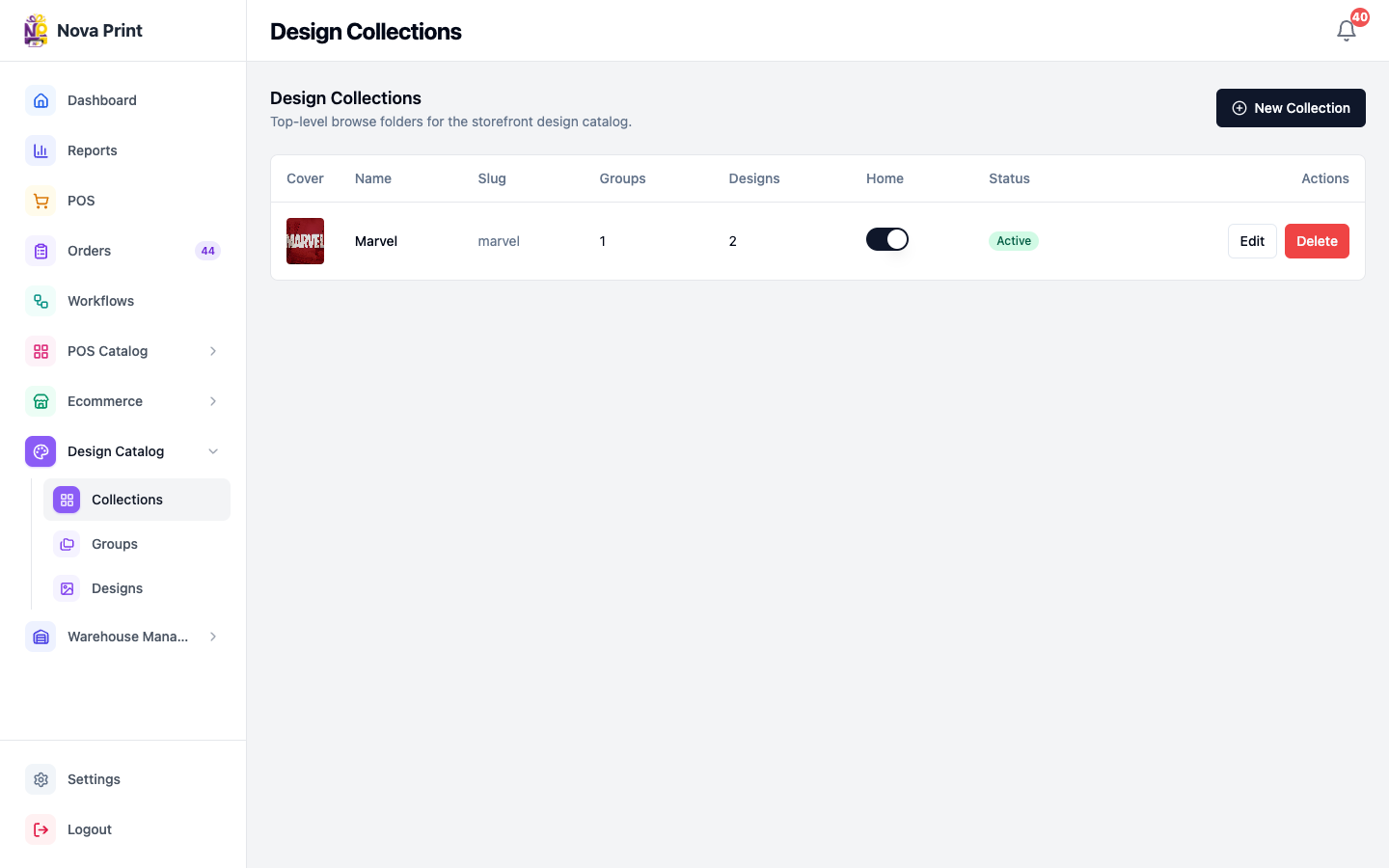
- Confirm table columns: Cover, Name, Slug, Groups, Designs, Home, Status, Actions.
To put a collection on the website home later: toggle Home on the row or edit and enable Show on ecommerce home (toasts: Shown on home / Removed from home).
2. Create a group (optional)
Groups are sub-folders (example: Marvel → Iron Man).
- Open Design Catalog → Groups (
/design-catalog/groups). - Optionally filter All collections.
- Click New Group.
- In Create Group:
- Cover Image.
- **Collection *** (required).
- **Name ***.
- Sort order, Active.
- Click Create.
Quick create also exists from the Designs page (New Group with Collection, Group name, Create). Verify in UI for the exact quick-create layout on your build.
3. Create a design
- Open Design Catalog → Designs (
/design-catalog/designs). - Click New Design.
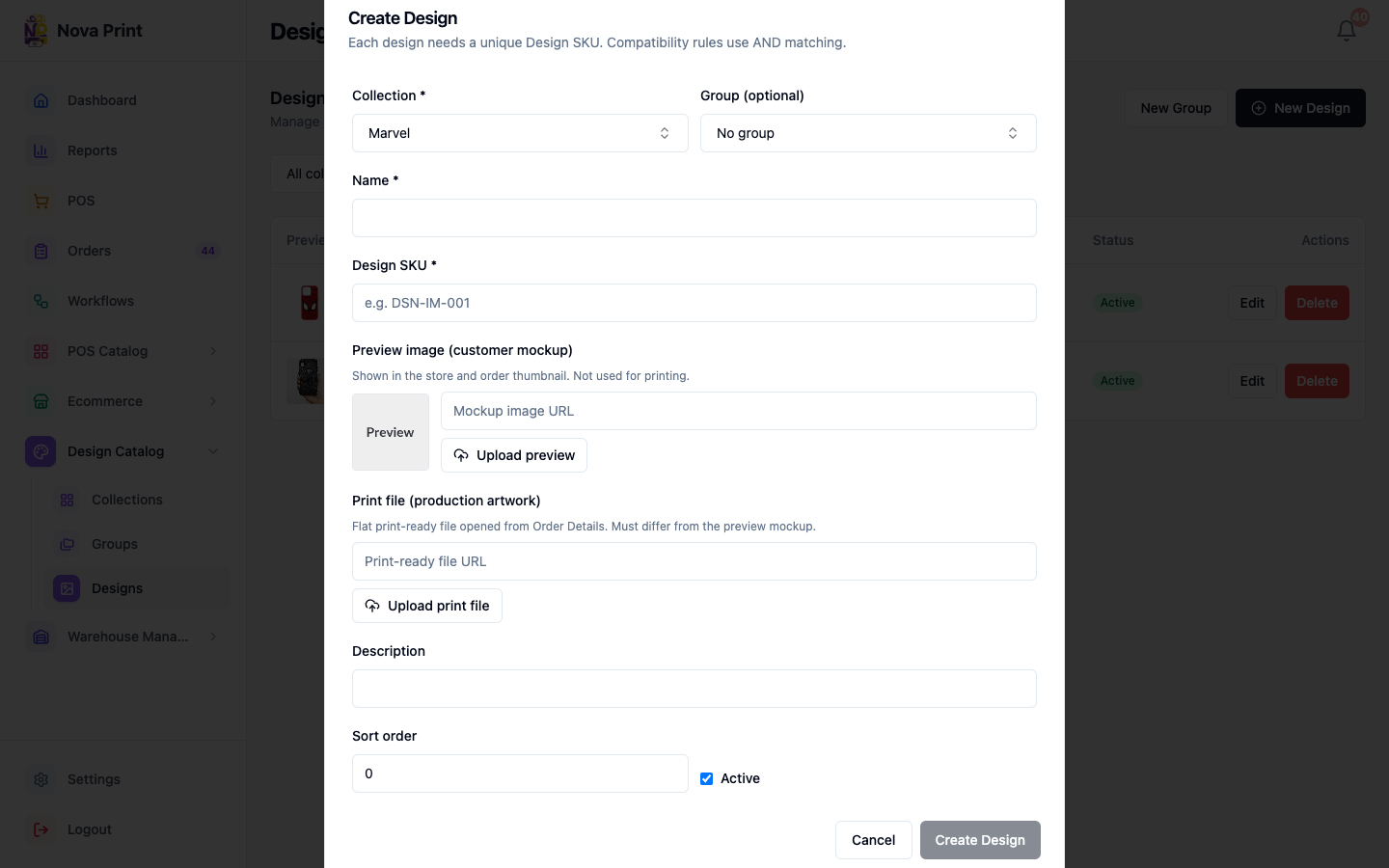
- In Create Design (copy notes AND matching for compatibility):
- **Collection *** — required.
- Group (optional) — placeholder No group.
- **Name ***.
- **Design SKU *** — must be unique.
- Preview image (customer mockup) — Upload preview.
- Print file (production artwork) — Upload print file.
- Description, Sort order, Active.
- Compatibility rules — click Add rule; see Compatibility rules.
- Click Create Design.
- After save, review matching product count if shown ("{n} matching product(s)"; some may show (not listed)).
List filters: All collections, Search name or Design SKU…. Columns include Preview, Name, Design SKU, Collection, Group, Matches, Status, Actions.
4. Edit or delete
- Edit on a row — same dialog → Save Changes.
- Delete — confirm Delete design? (and similar for collections/groups). Deletes may be blocked when still referenced — Verify in UI for exact messages.
5. Channel visibility (split screens)
| Goal | Where |
|---|---|
| Show collection on ecommerce home | Design Catalog → Collections → Show on ecommerce home / Home |
| Show collection in POS browse | POS Catalog → Designs tab → In Catalog (not on Design Catalog screens) |
| Design itself active | Design Active switch |
POS copy notes collections still need in-stock compatible products to appear for a store. Full storefront rules: Verify in UI.
Next: POS catalog visibility, Ecommerce listings and homepage.
Checklist
- Collection created and Active.
- Groups created only where browse needs sub-folders.
- Each design has unique Design SKU, preview, and print file.
- Compatibility rules added so Matches is not zero for customizable products.
- Ecommerce home and/or POS catalog toggles set intentionally.