Create and share a customer link
A Customer Link is a pre-filled checkout URL for one named customer and a fixed product list. Staff create it in POS; the customer opens it on the Checkout app (store.novaorder.in, or local port 3002).
URL shape: {checkout-base}/{pos-slug}/{link-code}. Catalog links use a different host and path — see Create a curated catalog link and Apps and URLs.
Staff
Open Link History
- Unlock POS with the terminal password.
- Open Link History (
/{pos-slug}/link-history). - Confirm the page title Customer Link History.
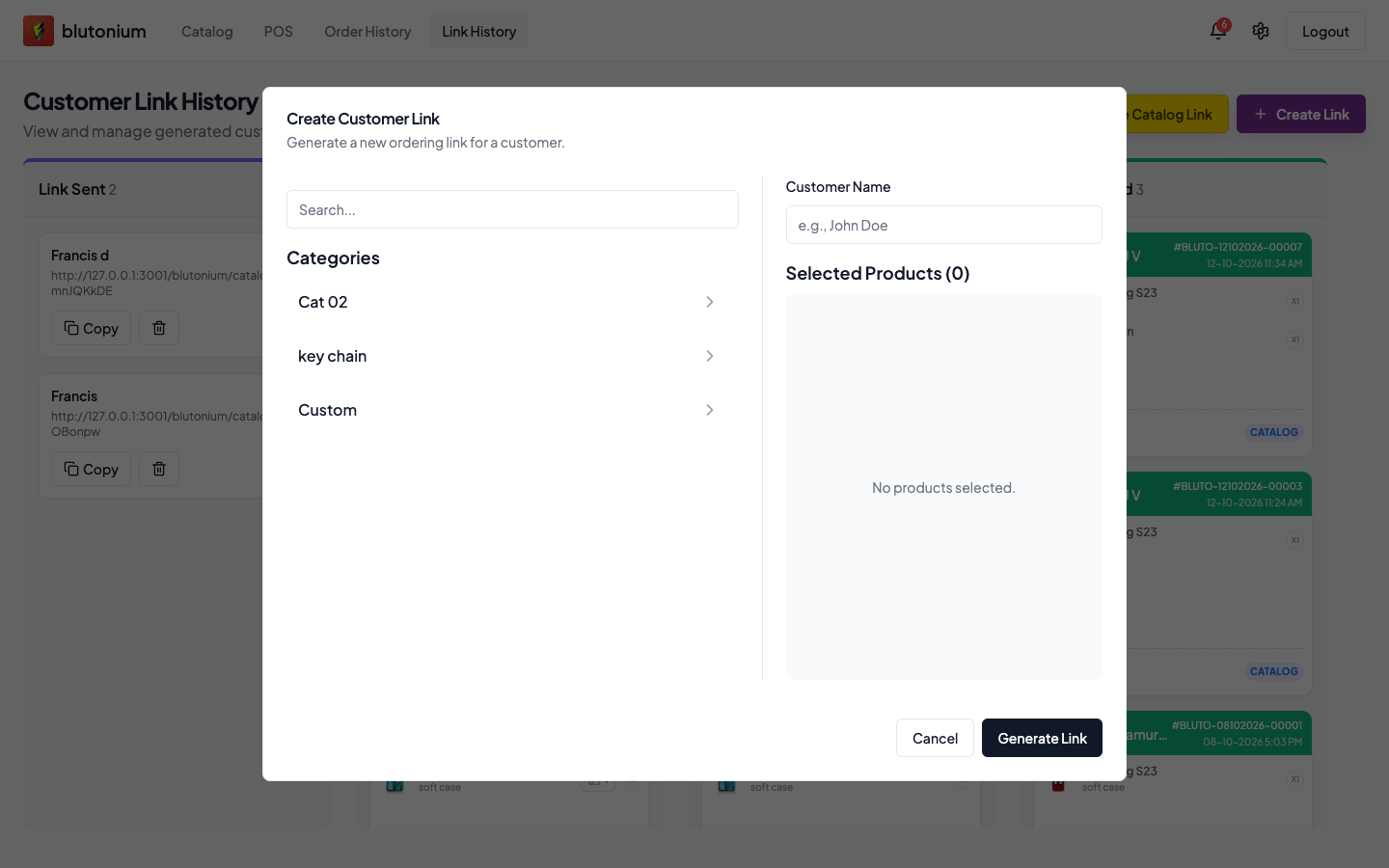
Create Link
- Tap Create Link.
- In Create Customer Link, enter Customer Name (placeholder example:
e.g., John Doe). - Pick products from categories (including Custom customizable items). Set a Price (₹) for each selected line.
- Tap Generate Link.
Validation:
- Customer name and at least one product are required.
- Every selected product needs a price of 0 or more.
Success toast: Customer link created. The new link starts in status Empty on the board.
Copy or share
On an Empty or Submitted card:
- Copy — copies the checkout URL (rewrites localhost backend URLs to the configured checkout base when needed).
- Share — opens WhatsApp with:
Hi {customer_name}, please complete your order here: {url}.
Edit is available only while status is Empty (Edit Customer Link → Update Link).
After you share
The customer completes Upload → Shipping → Payment on Checkout. When they finish, the card moves to Submitted. You convert it with Add to Orders — see Convert submission to order.
Customer
You do not create this link. Open the URL the shop sent you and follow Open a shared checkout link.