Convert a submission to a POS order
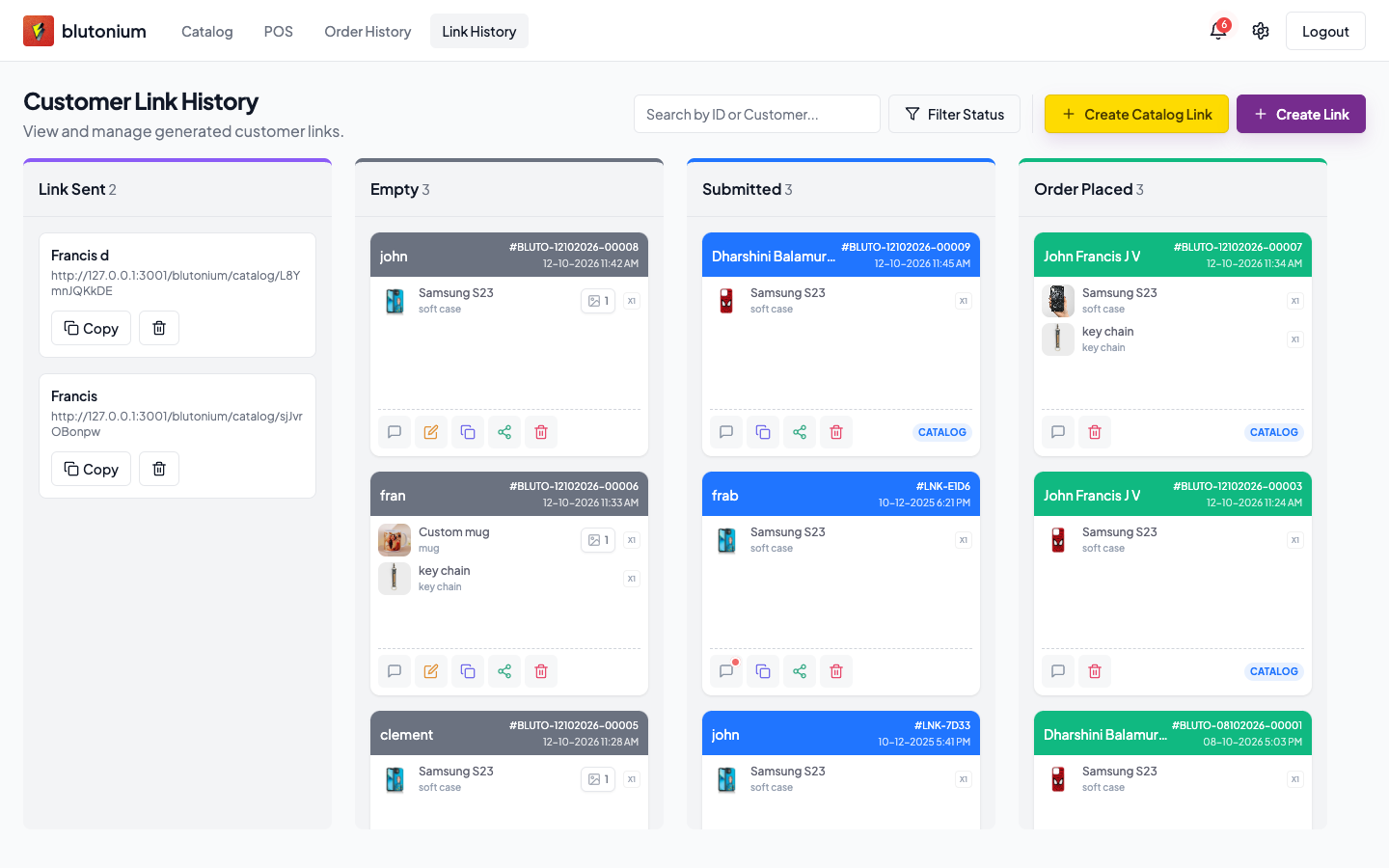
When a customer finishes a shared checkout link, the link becomes Submitted. Staff turn that submission into a real POS order. There is no separate “convert” API — POS checkout sends customerLinkId when creating the order, and the backend sets the link to Order Placed.
Staff
Review the submission
- Open Link History.
- In the Submitted column, tap the card.
- In Customer Submission (subtitle Response for link ID: +
link_id), review:- Order Details / Customer: / Phone Model: (if present)
- Products (including Custom and Uploaded Designs:)
- Shipping Details
- Payment Screenshot
Add to Orders
- Tap Add to Orders (shows Adding... while preparing).
- POS opens the sell screen with cart and shipping pre-filled from the link, and remembers
customerLinkId. - Complete the in-store order as usual.
If products cannot be mapped back to the catalog, you see Cannot add to orders: missing product mapping and stay on Link History.
After a successful POS order create with that customerLinkId, the link status becomes Order Placed and the card moves to that column.
Chat while converting
You can still open Comments on the card to message the customer before or after conversion. System messages may also appear in the thread.
Customer
You do not place the store’s POS order. After you tap Complete Order on Checkout, staff process your submission. Your screen shows Order placed successfully and the order ID (link_id). Status and design approval updates appear on that same success page — Chat and design approval.