Chat and design approval
After Checkout step 3, customers stay on the success screen. Support chat and design Approve / Reject are available there (not during the Upload / Shipping / Payment wizard). Staff use the matching Comments panel on Link History.
Live updates use Server-Sent Events on the link’s comments stream (new_comment, status_change, approval_change, and related events).
Customer
Success screen
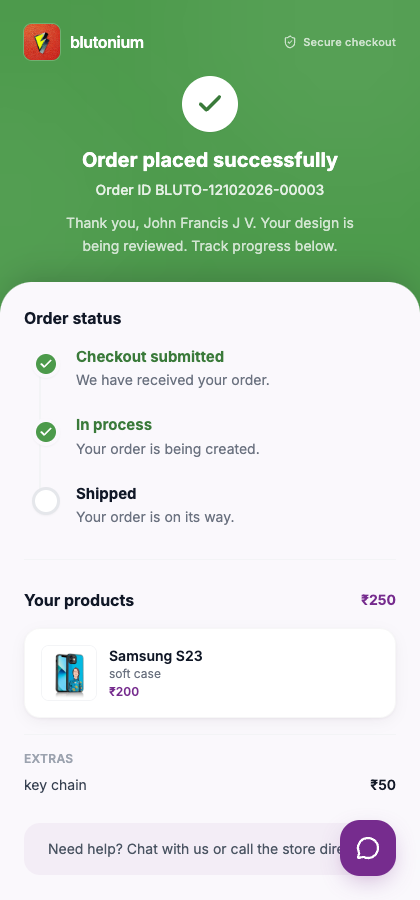
Hero: Order placed successfully, Order ID {link_id}, and thank-you copy that design is being reviewed. Help line: Need help? Chat with us or call the store directly.
Order status timeline (labels as shown):
- Checkout submitted — We have received your order.
- Needs approval (when mockup units exist) — Review mockups and approve the design. / when done Design approved. Production can continue.
- In process — Your order is being created.
- Shipped — Your order is on its way. (shows Tracking ID: when set)
Design approval
When a unit is Approval Requested, open that unit ({item name} · Unit {n}):
- View mockup thumbnails, or wait if Mockups will appear here shortly.
- Approve, or Reject with optional note (Optional note for the designer) → Confirm reject.
Inline errors: Failed to approve / Failed to reject (or the API message).
Support chat
- Tap the chat control (Open support chat).
- Window title Support / Online. Empty state: No messages yet. Start the conversation!
- Type in Type a message... and send.
New staff messages can show a badge until you open chat. Keep the same link open to receive live status and approval updates.
Staff
- On Link History, open Comments on the card (header shows the customer name).
- Empty: No comments yet. Placeholder: Type a comment.... Your messages show as You; customer messages use their sender label; system notes appear centered.
- Unread dots track new Customer messages since you last opened that chat.
- Design mockups and approval requests are driven from Admin workflows; when units reach the customer, they approve or reject on Checkout. Watch SSE toasts / board refreshes when the link is submitted or status changes.
Catalog-link customers use the POS-hosted catalog success/status UI after a curated shop order — similar chat patterns, different host than this Checkout app.