Notifications and order archive
Admin alerts land in the header bell and Notifications inbox. Completed and Shipped orders can leave the live boards via Order archive settings, then be browsed or restored under Archived Orders.
Who and where
- Roles: Admin for Settings tabs,
/notifications, and/settings/archive - Routes:
/settings?tab=notifications,/notifications,/settings?tab=archive,/settings/archive - Nav: Settings → Notifications / Archive; header bell; Settings link panels Manage
There is no separate “notifications archive” screen — unread/read lives in the inbox; archive applies to orders.
Notifications
Types you may see
Admin UI handles: order placed, edit requested, edit updated, comment added (icons/labels from those types).
1. Enable sound (optional)
- Open Settings → Notifications.
- Toggle Enable sound alerts under Notification sound.
- Note: This setting is saved in your browser for this admin account.
- Sound plays for new order placed events when enabled (SSE live feed).
2. Use the header bell
- Click the bell (Notifications).
- Read the panel title Notifications, unread count {N} new, and up to 10 items.
- Optional: Mark all read.
- Click an item to open
/orders?orderId={id}(marks read if unread). - Delete one item with the trash control (Delete notification).
- Footer Show more opens the full inbox when more exist.
Empty: No notifications yet.
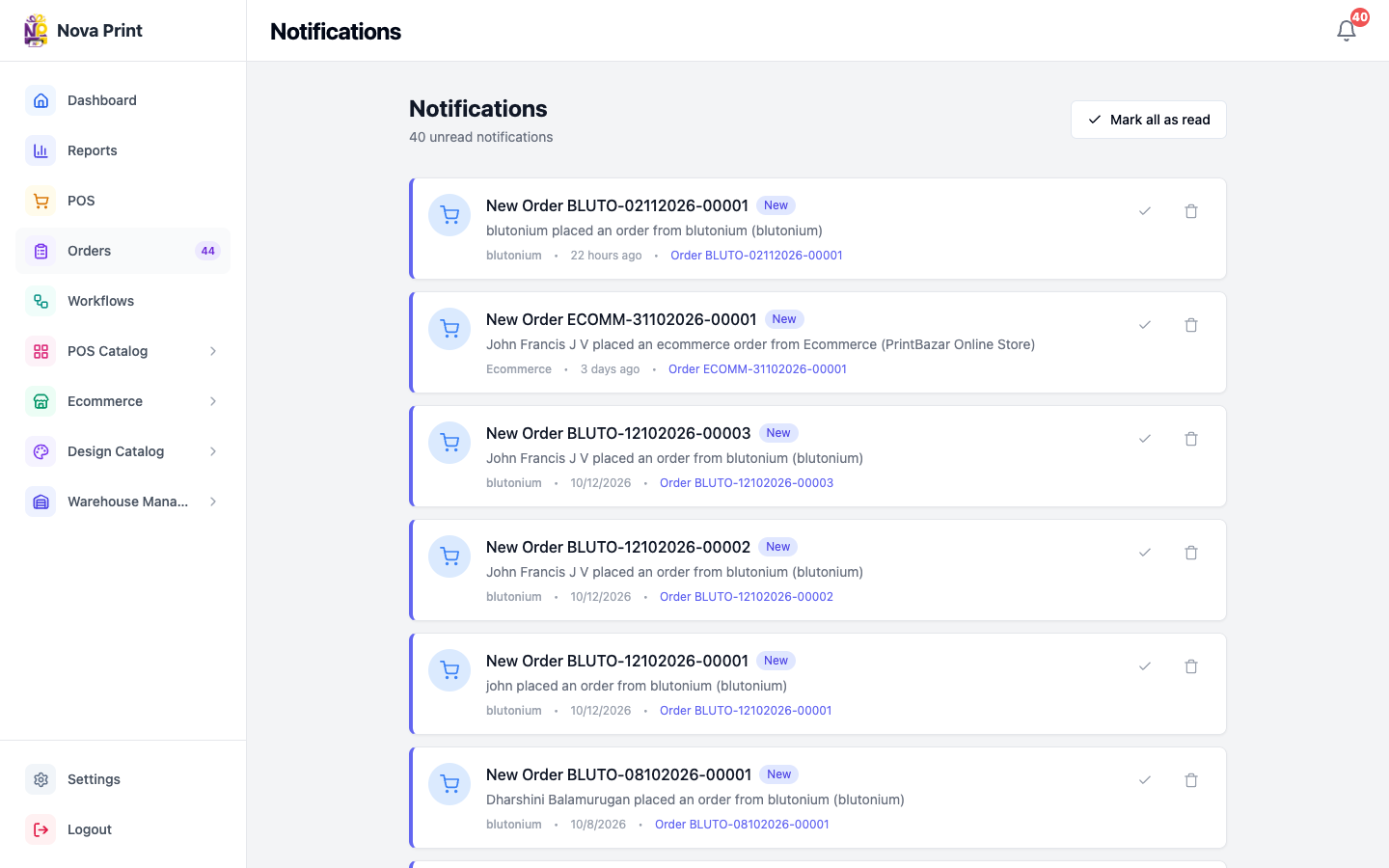
3. Open the Notification inbox
- From Settings → Notifications, open Notification inbox → Manage, or go to
/notifications. - Header Notifications; subtitle shows unread count or All caught up!
- Use Mark all as read when needed.
- Cards show New, title, message, and
{posName} • {time} • Order {orderId}. - Mark read (check), delete (trash), or click through to the order.
Empty: All Caught Up! / You have no notifications.
Dashboard Recent activity also lists recent notifications with View all → /notifications.
Order archive
What archive does
Automatically moves Completed and Shipped orders off the live Orders board after configured delays. Daily job runs at 02:00 IST; you can also run immediately.
4. Set archive delays
- Open Settings → Archive.
- Section Order archive — Automatically move Completed and Shipped orders off the live boards after a delay.
- Set Completed after (days; 0 disables auto-archive for Completed). Range 0–3650.
- Set Shipped after the same way.
- Under Save delays, click Save archive settings.
- Success: Archive delays saved.
Form defaults when unset: 5 days (Completed) / 7 days (Shipped).
5. Run archive now
- Still on Archive, under Run now, click Run archive now.
- Success toast Archive job finished with counts archived (completed vs shipped).
- Failures toast Archive job failed.
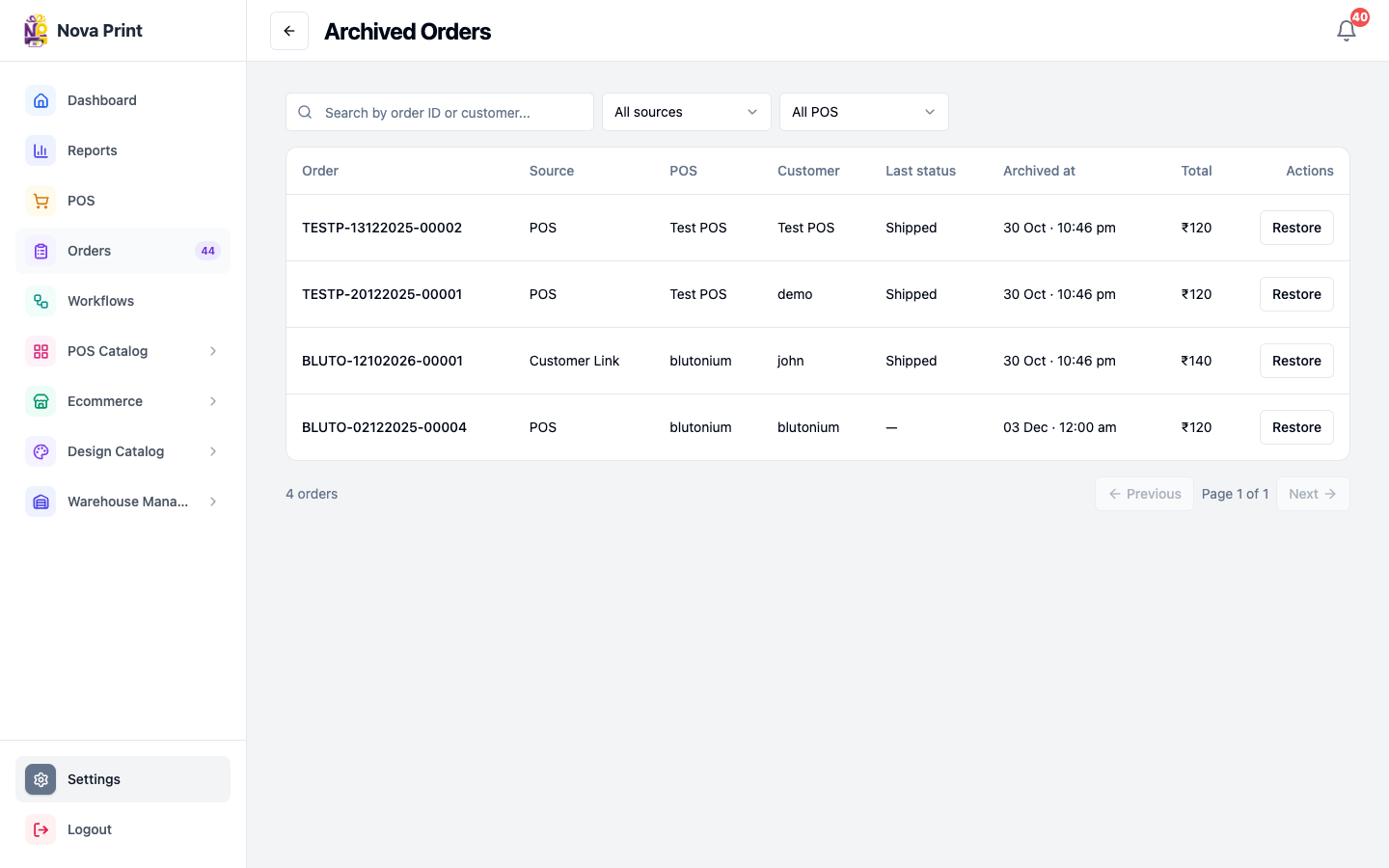
6. Browse and restore archived orders
- On the Archive tab, under Archived orders, click Manage →
/settings/archive(header Archived Orders). - Filter: Search by order ID or customer..., All sources / POS / Ecommerce / Customer Link, All POS.
- Table: Order, Source, POS, Customer, Last status, Archived at, Total, Actions.
- Click an order id to open Order Detail.
- Click Restore → dialog Restore order → Restore (or Cancel).
- Success: Order restored — {orderId} is back on the live orders board.
Pagination: Previous, Page X of Y, Next.
Checklist
- Sound preference matches desk needs (browser-local).
- Completed/Shipped delays match how long you want cards on the live board.
- After restore, confirm the order reappears under Orders at its last status.
- Accounts/Design/Print: verify whether the header bell appears for their session and where clicks land (Verify in UI).